Agents · Phone
Your AI assistant using your phone for you.
Reply to the message, find the photo, book the appointment, open that app. You ask in words, from wherever you are, and the phone does it. Before sending, paying or deleting, it waits for your yes.
Under construction: the Android and iPhone apps are not in the stores yet. This page shows how Phone works. The dashboard is in Portuguese for now.
Why this exists
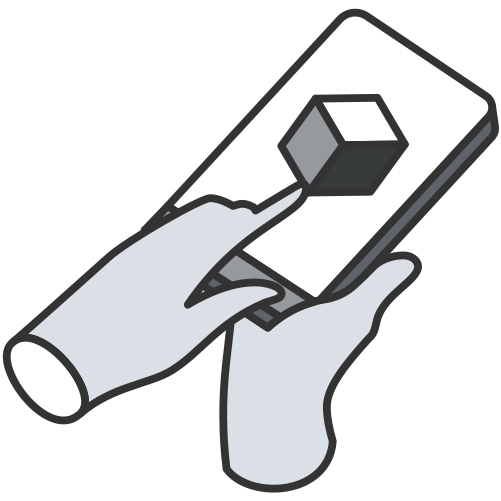
Your assistant writes, researches, codes. On your phone, the one typing is
YOU.
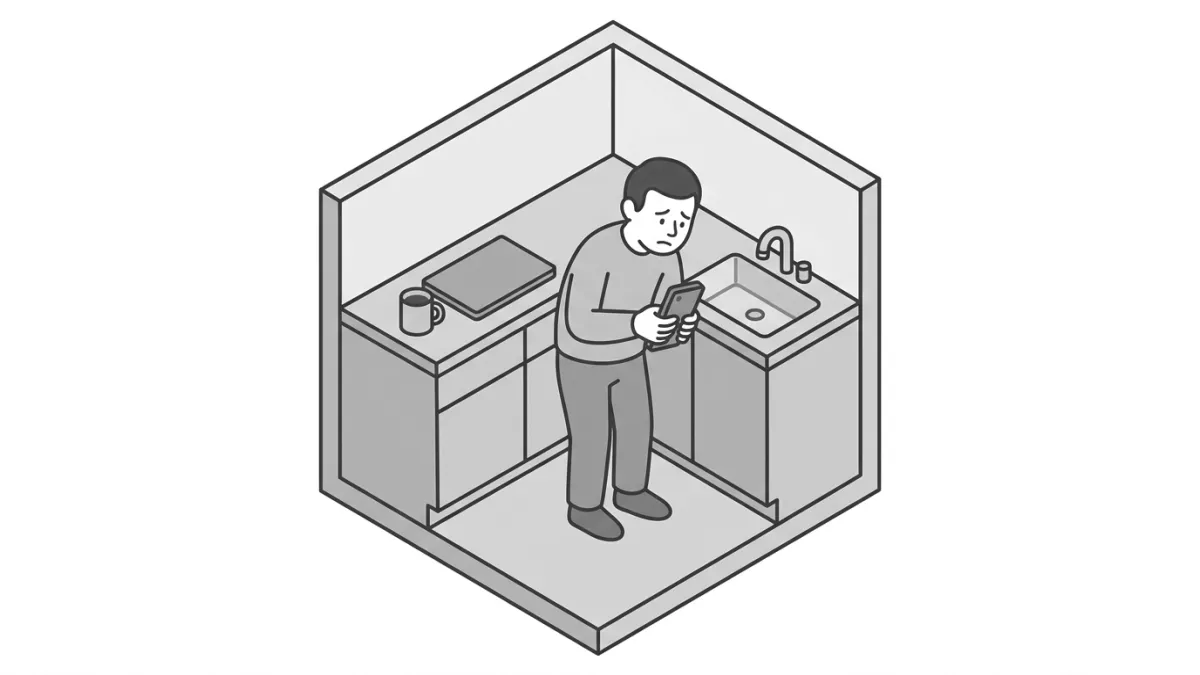
The small tasks of the day live on your phone: the message to answer, the photo to find, the reminder to create, the app to open. Each takes a minute, and together they take the morning. The phone keeps each app in its own box, and no assistant gets past that door on its own.
- The message still waiting for a reply
- The photo lost among thousands
- The same path of taps, every day
The whole path
Download, paste, ask.
From the phone in your hand to the assistant using it.
The path
An app on your phone. An address in your assistant.
The app signs in with a code sent to your email and shows your phone's MCP address. Paste that address into Claude or another assistant that speaks MCP. Sign-in happens in the browser, and there is no key to copy.
$ claude mcp add --transport http phone \
    https://phone.worker.myagents.click/mcp/<your phone id>

you       find the photos from Marina's birthday
          and put them in an album

phone     photos  ·  37 from Oct 12, 2026
phone     album "Marina's birthday" created
On Android, just the app
With the Accessibility permission, which you turn on in Settings, the app reads the screen and taps in any app. No board.
On iPhone, the app and a board
The app handles photos, contacts, calendar, reminders and Shortcuts. For other apps, a small board next to the iPhone taps the screen for the agent.
From wherever you are
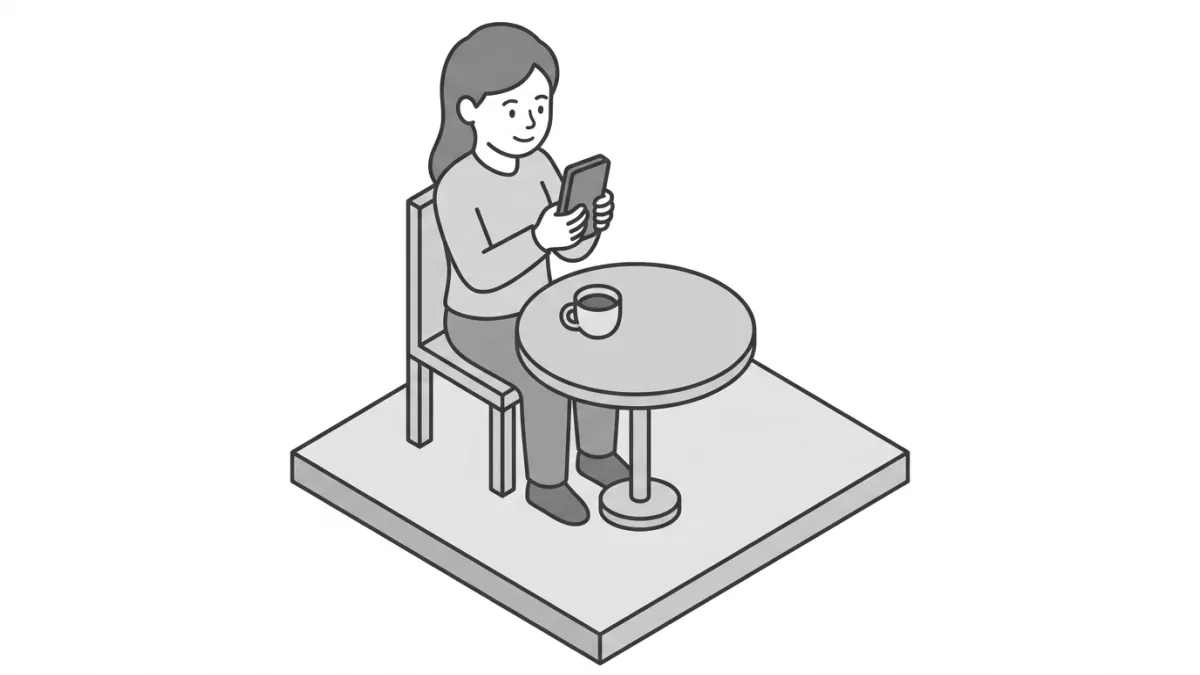
The address lives in the cloud. Ask from your work computer, from the browser or from another device, and the phone you left at home does it.
On Android
On Android, the app does it all by itself.
Android lets an app read the screen and tap it when you turn on the Accessibility permission. With it, the agent opens the app you ask for, scrolls, types and reads what is written. No board and no computer. You turn this permission off in Settings whenever you want.
- Any app: open, tap, scroll and type
- The screen reaches the agent as text, with each button in place
- Photos, contacts and calendar, each with its own Android permission
- Sending, paying and deleting wait for your yes
On iPhone
On iPhone, a common board becomes the agent's finger.
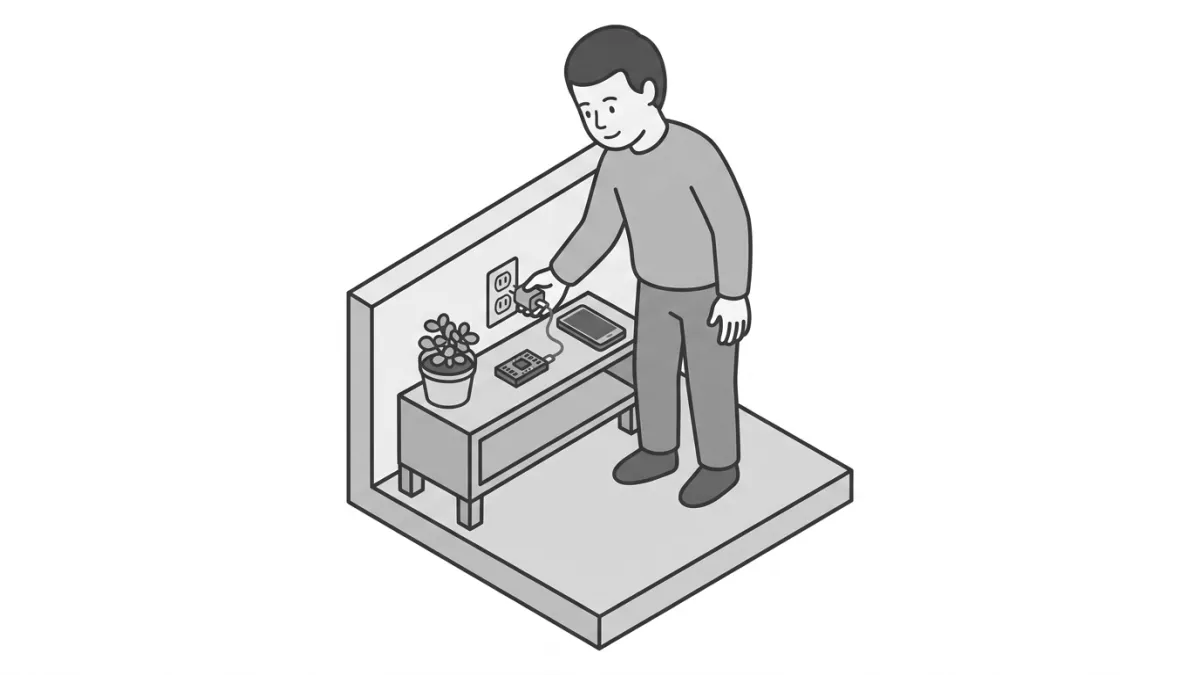
With just the app, the agent already handles photos, contacts, calendar, reminders and Shortcuts. For other apps, the iPhone does not let one app touch another app's screen, but it accepts a Bluetooth mouse and keyboard. The board presents itself as both: it gets the request from the cloud over Wi-Fi and moves the pointer, taps and types. The agent sees the screen through the broadcast you turn on.
- ESP32 DevKit with the WROOM-32 chip: 35 to 55 reais in Brazilian listings from November 2026
- A USB cable and a charger you already have
- Flashed from the browser, no soldering and nothing to install
- To the iPhone, it is a mouse: disconnect it in Settings
What waits for you
The agent asks. You decide.
The rule lives on the server, not in a warning.
Writing
Reading runs right away. Sending, paying and deleting wait for your yes.
The agent prepares what it would do and stops. The request shows up on your phone, in Portuguese, with what will happen. After your yes, it does exactly that, once. New request, new approval.
you       tell Marina I'll be there at 8

phone     screen  ·  chat with Marina
phone     type "I'll be there at 8"  ·  send
          nothing sent: the request waits for you

phone app Approve  ·  yes
phone     sent, once
You watch and take over
Every tap the agent makes shows on the screen. Pick up the phone whenever you want: it stops and hands control back.
The passcode is yours only
The agent never types the phone's passcode. When the phone is locked, it asks you to unlock it.
History without the data
Each request is logged with the time and a summary. Your photos, messages and screens are not stored in the cloud: they pass through and move on.
The limits
What It Does, and Where It Stops
The limits, stated before you need to ask.
Status
Under construction
The cloud and the MCP address are live. The Android app is in closed testing on Google Play; the iPhone app is under construction.
Price
Free: 100 actions and 1 phone per month
Starter US$ 5.99 (5 thousand actions, 3 phones), Pro US$ 9.99 (25 thousand, 9) and Scale US$ 19.99 (100 thousand, 99), per month. An action is each screen read, tap, gesture or text; what fails or what you decline does not count.
Devices
Android and iPhone
The same MCP address and the same approval rules on both.
Access
Email sign-in
A code arrives by email; the first sign-in creates the account.
Android
Any app, with just the app
Through the Accessibility permission, which you turn on and off in Settings.
iPhone, with just the app
Photos, contacts, calendar, reminders, Shortcuts
Plus health and location, read only. Each with its own iPhone permission.
iPhone, any app
With the board and screen broadcast
You turn the broadcast on yourself, in Control Center, and turn it off whenever you want.
The board
ESP32 with the WROOM-32 chip
On 2.4 GHz Wi-Fi, near the iPhone. The C3, S2 and S3 models do not work.
Computer
None
Only to flash the iPhone board, once, from the browser.
Response
Right away, with the app open
With the app closed, the phone may delay the request.
Not yet
Typing the phone's passcode
Nor apps that hide their own screen, like some banking apps.
Phone on iPhone, in Four Steps
Done once. On Android, all you need is the app and the Accessibility permission, which the app asks for itself.
01
Flash the board
Plug the ESP32 (WROOM-32) into a computer and flash the program from the browser. Then leave it on a charger near the iPhone and choose the 2.4 GHz Wi-Fi in the app.
02
Pair and turn on the pointer
On the iPhone, Settings, Bluetooth, tap Phone. Then Settings, Accessibility, Touch, AssistiveTouch: on. Leave Dwell Control off.
03
Turn on the broadcast
In Control Center, press and hold the screen recording button, choose Agents Phone and tap Start Broadcast. To stop, tap the red bar.
04
Paste the address
The app shows your iPhone's MCP address. In Claude, Settings, Connectors, Add custom connector: paste it and sign in with the code from your email.
FAQ
The Questions, in the Order They Come Up
Still have a question?
Message us on WhatsApp and tell us what you want the agent to do on your phone. The person who answers wrote the code.
Agents · Phone
Your phone at an MCP address.
On Android, just the app. On iPhone, the app and a common board plugged into the wall. On both, sending, paying and deleting wait for your yes.